Plotting Histograms of Scalar Values
You can use the Histogram tool that is available in the Scalar information box to profile the distribution of values within a scalar mesh.
Histogram of an thickness mesh

The following options and statistics are available for plotted histograms.
| Description | |
|---|---|
|
Y log |
If selected, the Y-axis will be plotted in log scale. |
|
Scalar slot |
Lets you choose the scalar values that will be plotted on the histogram. |
|
Statistics |
Minimum… Indicates the minimum value of the selected scalar slot within the mesh. Maximum… Indicates the maximum value of the selected scalar slot within the mesh. Mean… Indicates the mean value of the selected scalar slot within the mesh. Standard deviation… Indicates the standard deviation of values within the mesh. |
|
Export to CSV |
Exports the histogram data to a comma-separated values file (*.csv extension). |
|
Copy to Clipboard |
Copies the statistics for the selected dataset to the clipboard. You can paste this information into any word processing or spreadsheet application. |
The tools at the top of the Histogram dialog let you to pan, zoom, and reset the histogram, as well as save the figure, adjust the figure, and export the histogram data to a comma-separated values file (*.csv extension).
|
|
Description | |
|---|---|---|
|
Pan |
|
Pans or zooms the figure as follows:
|
|
Zoom |
|
Zooms in or out on the figure, as follows:
|
|
Reset |
|
Resets the original view of the figure. |
|
Save |
|
Saves the figure as an image. Figures can be saved as a bitmap image in the JPEG, PNG, and TIFF file formats, as a vector graphic in the EPS or SVG file formats, or in the PDF file format. The figure can also be saved as raw data or in PG code for LaTeX. |
|
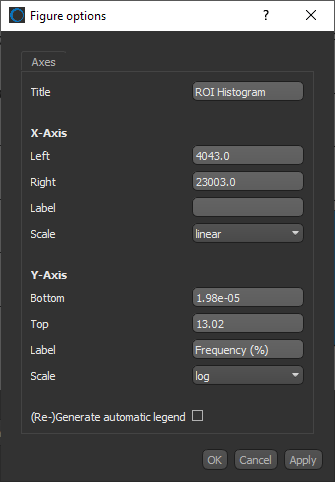
Settings |
|
Opens the Figure options dialog, shown below.
You can edit the figure title, as well as choose a range, label, and scale for the X and Y axes, as follows:
|
|
Export to CSV |
|
Exports the histogram data to a comma-separated values file (*.csv extension), |



 How to Plot a Histogram
- Select the required scalar mesh in the Data Properties and Settings panel.
- Click the Histogram
 button in the Scalar information box in the bottom section of the Data Properties and Settings panel.
 - If required, select the scalar slot that will provide the data values in the Scalar slot drop-down menu.
The histogram of the selected scalar values appears.
- Adjust the figure, as required, with the tools at the top of the dialog.
- Select another scalar slot to plot its values in the histogram, if required.